 Soloclef Notes Docs
Chat and citations
How the notebook chat answers, and how to check its sources
Each notebook has one chat. It answers from the notebook's ticked sources only. It doesn't search the web on its own, and it doesn't read other notebooks. It can read your connected email.
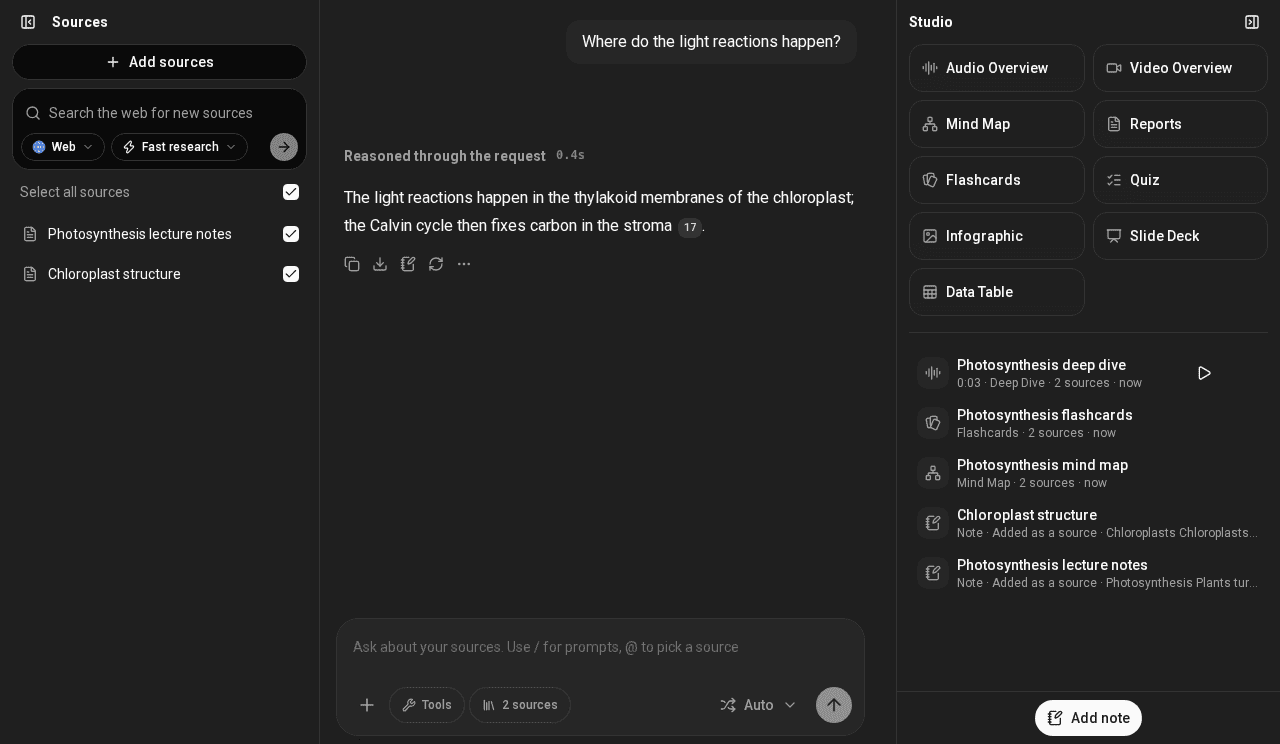
The answer appears as it is written. You can switch to another tab while it answers: when you come back, the finished answer is there in full, without reloading the page.
Citations
Answers carry numbered citations. Click one to see the exact passage it came from, with the passages around it. Each passage shows the PDF page it is on, such as p. 12, and the cited one is marked Cited chunk.
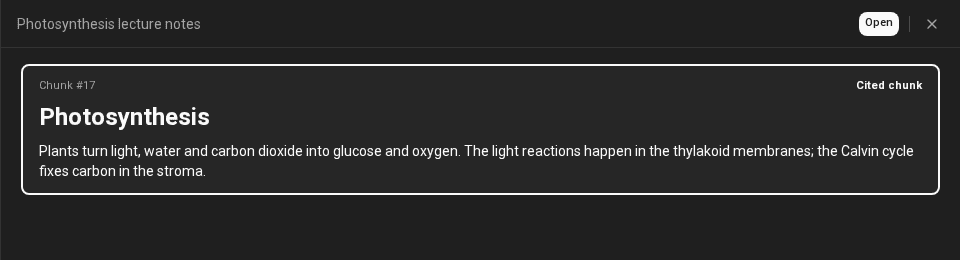
From there:
- Summary shows the source's guide: what the whole source covers, in a few paragraphs. The back arrow returns to the passage.
- Open p. 12 opens the original PDF beside the chat, at the cited page, with the cited text highlighted. When the page isn't known, the button says Open and the file opens at the start.
Large PDFs open quickly: the viewer loads only the pages you look at, not the whole file.
Asking well
- Suggested questions appear when the chat is empty, and follow-up questions appear under each answer.
- Type @ to point a question at one or more of the notebook's ticked sources.
- Type / to use a saved prompt, or create one.
- Tools runs one tool for your next message only, for example a Google search. Web results are cited as Web, never as one of your sources, and they are not added to the notebook. See Tools below.
Tools
Tools, in the composer, picks one tool for your next message. That message can use it as well as your sources; the next one goes back to your sources alone. Regenerating its answer, or editing that message, uses the same tool again.
| Tool | What it does | Credits |
|---|---|---|
| Web | Reads the web pages you name. It doesn't search. | 0.2 per page |
| Google Search | Searches Google. Slow: about 15 seconds a search, and longer when Google asks for a check. | 0.55 per page of results |
| Exa, Tavily | Search the web in a few seconds: up to 10 results, each with a short passage. | Exa 1.5, Tavily 0.8 per search |
| Browserbase | Opens the pages you name in a real browser, so pages built with JavaScript work. One page at a time. | 0.2 per page |
| YouTube, Reddit, Instagram, TikTok, Google Maps, Indeed, Amazon, Walmart | Read that platform. | See Plans and credits |
Exa, Tavily and Browserbase use the workspace's own key and are listed only when the workspace has their MCP server (see MCP servers). If the key was removed in the last minute, the answer says the tool isn't available. Picking a tool adds only that tool, for that message.
Click a Web citation to see what the tool found. If a tool can't run (its key was refused, the service is busy, or a page didn't load), the answer says so and nothing is charged.
Choosing the model
The picker beside the send button chooses the model for your messages. Auto lets the app choose: it picks a standard model, and uses a premium one only when no standard model is available. Which model is the default is set per workspace, in the workspace settings under Models. Premium models are marked Premium and cost more (see Plans and credits).
Every account is offered the same models; only a site administrator can connect more. Besides the Chat model, Models sets the Quick tasks model (Studio suggestions, follow-up questions, source guides and chat titles), the Studio outputs model (see Studio), the Vision model and the Image generation model. Chat, Vision and Image generation offer Auto mode; instead, Quick tasks offers its Default model or Same as chat model, and Studio outputs its Recommended model or Auto (same as chat model). Owners and Editors can change them.
Configure chat
From the notebook menu, Configure chat sets how answers are written:
- Conversational goal: Default, Learning guide (helps you understand step by step instead of just giving answers), or Custom, with your own instructions.
- Response length: Default, Longer or Shorter.
If the workspace has System Instructions, the composer shows Instructions applied. Answers follow their tone, audience and format, but still come only from your sources, with citations.
Setting up an automation
Ask the chat to set up an automation, for example "every Monday, summarise what's new in my documents". It shows a Create automation card: Approve saves it, Edit lets you fine-tune it first, and Reject drops it. You can also reply in the chat to have it redrafted. See Automations.
Keeping answers
Hover an answer to copy it, download it, or Save to note. The download is a Markdown file, and the latest answer can also be regenerated: the same question is asked again and the new answer replaces the old one, so the chat goes on as if the old one had never been given. Delete chat history in the notebook menu deletes the chats you started (workspace Owners only). Your chat history is private to you. A workspace Owner can share their own chat by link: see Workspaces and sharing.